
Originally published February 8, 2026. Last updated July 29, 2026.
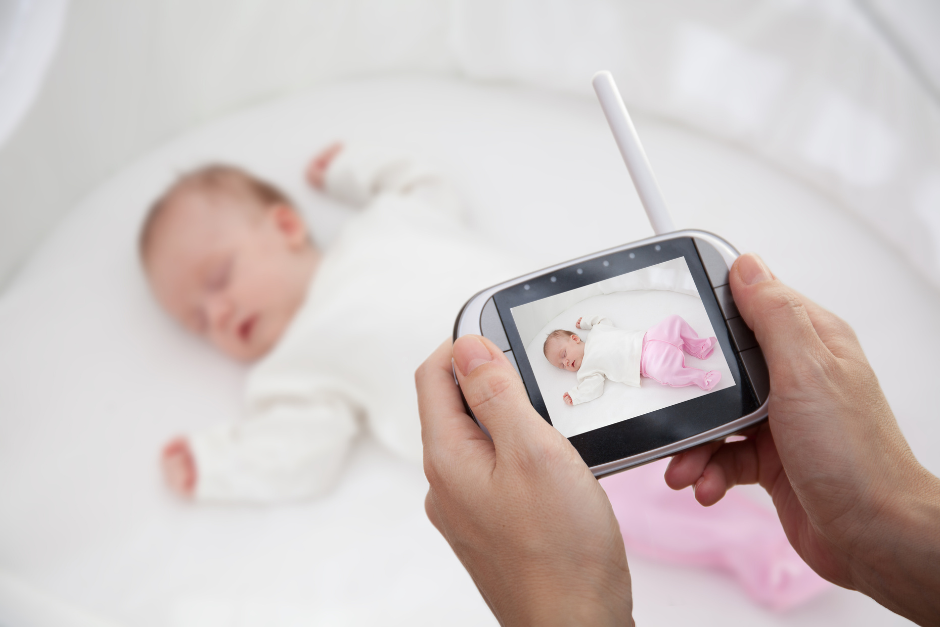
Wi-Fi baby monitors can make it easier to check on a sleeping baby from another room, receive movement or sound alerts and, depending on the monitor, view the camera while we are away from home.
That convenience also means the monitor may be connected to our home internet, a mobile app and an online account. Like any internet-connected camera, it is important to take a few steps to protect who can access it and what information it collects.
This does not mean Wi-Fi baby monitors are automatically unsafe, and it does not mean we need to become technology experts.
A few thoughtful settings can make a meaningful difference.
Let’s walk through what to check when choosing, setting up and using a Wi-Fi baby monitor.
How Does a Wi-Fi Baby Monitor Work?
A Wi-Fi baby monitor typically connects to:
• A camera in your baby’s room
• Your home Wi-Fi network
• An app on your phone or tablet
• An online account managed by the monitor manufacturer
Some monitors also store video clips, audio, sleep information or activity alerts in the cloud.
This is different from many traditional video monitors that send a signal directly from the camera to a dedicated parent unit without connecting to the internet.
Neither option is automatically right for every family.
A non-Wi-Fi monitor may offer greater simplicity and less remote access. A Wi-Fi monitor may offer convenient features such as viewing from outside the home, sharing access with another caregiver or receiving alerts on a phone.
The important part is understanding what the monitor connects to and using the available security settings.
Before Buying a Wi-Fi Baby Monitor
Cyber security begins before the monitor enters the nursery.
The Office of the Privacy Commissioner of Canada recommends researching web-connected cameras before purchasing them, including what information they collect and whether the company provides meaningful privacy and security information.
Before choosing a monitor, look for answers to these questions:
• Does the manufacturer regularly provide security and firmware updates?
• Can automatic updates be enabled?
• Does the account support multi-factor authentication?
• Can each caregiver have their own login?
• Can remote viewing be turned off?
• Does the monitor record or store video and audio?
• Where is recorded information stored?
• How long are recordings kept?
• Can recordings and account information be deleted?
• Does the company clearly explain how personal information is used or shared?
• Is customer support available if there is a security concern?
Be cautious if a product has no clear privacy policy, no way to update its software or little information about how recorded video and audio are handled.
A lower price is not always a good value if the device will no longer receive security support.
1. Change Every Default Password
Some monitors, cameras and home routers arrive with preset usernames, passwords or PINs.
Default login information may be easy to find online, especially when manufacturers use the same credentials for multiple devices.
As soon as the monitor is set up:
• Change the monitor’s default password or PIN.
• Change the password for the monitor’s app or online account.
• Change the router’s default administrator password if this has not already been done.
• Confirm that the original login no longer works.
The monitor, Wi-Fi network, router administrator account and email account should not all use the same password.
If one account is compromised, reusing that password can make other accounts easier to access.
2. Use a Strong, Unique Passphrase
Get Cyber Safe recommends using a strong passphrase whenever possible.
A passphrase is a combination of at least four random words and should be at least 15 characters long. It is often easier to remember than a shorter password filled with predictable substitutions.
Avoid using information that someone may be able to find or guess, such as:
• Your baby’s name
• A birthdate
• Your address
• A family member’s name
• A pet’s name
• The monitor brand or model
• A password already used for email, banking or social media
A password manager can help create and securely store unique passwords without requiring us to remember every one.
The email account connected to the monitor deserves special attention. Anyone who gains access to that email may be able to request a password reset for the baby monitor account.
3. Turn On Multi-Factor Authentication
Multi-factor authentication, sometimes called MFA, two-factor authentication or two-step verification, adds another step when someone tries to sign in.
After entering the password, the user may also need to enter a temporary code, approve a notification or use another form of verification.
This means that even if someone learns the password, they may still be unable to access the account.
Turn on multi-factor authentication for:
• The baby monitor account
• The email account connected to it
• Any shared smart-home account used to control the monitor
Whenever possible, use an authenticator app or another secure method offered by the manufacturer.
If a monitor does not offer multi-factor authentication, the other protections in this guide become even more important.
4. Secure Your Home Wi-Fi and Router
Your baby monitor relies on your home network, so the router is an important part of monitor security.
Check that your network is protected with WPA2 or WPA3 encryption. The Canadian Centre for Cyber Security describes WPA3 as the newest and most secure Wi-Fi encryption option. WPA2 remains widely used, but older options such as WEP should not be used.
Helpful router steps include:
• Change the router’s default administrator username and password.
• Give the Wi-Fi network a name that does not identify your family, address or router model.
• Use a strong, unique Wi-Fi passphrase.
• Install router updates when they are available.
• Turn off Wi-Fi Protected Setup, or WPS, if you do not need it.
• Review which devices are connected to the network.
Router settings can feel unfamiliar. Your internet provider or router manufacturer can usually help you find the encryption, password and update settings.
You do not need to change settings you do not understand without support.
5. Consider a Separate Network for Smart Devices
Many routers allow families to create a guest or secondary Wi-Fi network.
Using a separate network for smart devices can help keep baby monitors, smart speakers, doorbells, plugs and other connected products apart from personal computers and phones.
This means that if one smart device develops a security problem, there may be an additional barrier between it and the devices used for email, work, banking or storing family photos.
A secondary network is an added layer, not a requirement for using a monitor responsibly.
Families who are comfortable with their router settings can connect smart devices to the secondary network and keep phones, tablets and computers on the primary network.
6. Keep the Monitor, App and Router Updated
Security updates do more than add new features. They can fix weaknesses discovered after a product has been released.
Turn on automatic updates when they are available for:
• The baby monitor camera
• The monitor’s firmware
• The companion app
• The phone or tablet running the app
• The home router
If automatic updates are not available, check the app or manufacturer’s website regularly.
Only install updates through the official app, device settings or manufacturer’s website. Avoid downloading monitor software from links in unexpected emails or messages.
It is also worth checking whether an older monitor is still supported. If the manufacturer has stopped providing security updates, replacing the monitor may eventually be the safer option.
7. Give Access Only to People Who Need It
Some monitors allow parents to invite partners, grandparents, babysitters or other caregivers.
Whenever possible, give each person their own account rather than sharing the primary username and password.
Separate accounts can make it easier to:
• See who has access
• Remove one person without changing everyone’s login
• Limit what each person can view or control
• Keep the primary account password private
Review the access list occasionally and remove:
• Former caregivers
• Old phones or tablets
• Guests who no longer need access
• Accounts you do not recognize
• Duplicate accounts
When a babysitter or family member only needs temporary access, remove that access when it is no longer needed.
8. Review Privacy, Recording and App Permissions
Baby monitor apps may ask for access to the camera, microphone, location, photos, contacts, Bluetooth or other information on your phone.
Some permissions are needed for the monitor to work. Others may only support optional features.
Review:
• Whether location access is necessary
• Whether the app can run in the background
• Whether clips are automatically saved
• Whether recordings are stored locally or in the cloud
• How long recordings are kept
• Whether information is shared for advertising or analytics
• Whether voice assistants or social media accounts are connected
Turn off features you do not use.
For example, a family that only uses the monitor at home may not need remote viewing. Another family may want remote viewing but may not need continuous cloud recording or location access.
There is no single correct combination. The goal is to keep the features that are useful and turn off unnecessary access.
9. Be Thoughtful About Remote Viewing
Remote viewing allows a monitor feed to be opened while the caregiver is outside the home.
This can be helpful when another trusted caregiver is with the baby, but it also means the feed can be reached through the internet rather than only through the home network.
If the app allows it:
• Turn remote viewing off when you do not use it.
• Enable alerts for new logins or unfamiliar devices.
• Review the account’s login history.
• Sign out of devices you no longer own or use.
• Avoid opening the monitor through unsecured public Wi-Fi.
• Keep the phone or tablet used to access the monitor locked with a passcode or biometric protection.
Never leave the monitor app signed in on a shared or publicly accessible device.
10. Position the Camera With Privacy in Mind
Aim the camera only at the area you need to monitor.
Avoid capturing more of the room or home than necessary, particularly:
• Doorways into shared spaces
• Computer screens
• Calendars or documents
• Home addresses or identifying information
• Areas where family members change clothing
• Windows showing street signs or house numbers
Recheck the view after moving furniture or changing the nursery layout.
As children grow, it is also worth considering their increasing need for privacy. A monitor that was useful during infancy may no longer need to record continuously once a child is older.
11. Keep Monitor Cords Out of Reach
Digital security is only one part of baby monitor safety.
Never place a monitor or its cord inside the crib, bassinet or playpen.
Secure all cords firmly and keep them:
• Well outside the sleep space
• Away from the crib mattress and rails
• Out of reach even when a child stands or climbs
• Away from changing tables and furniture a child could climb
• Secured so they cannot be pulled loose
Remember that a young baby who cannot yet roll or crawl will eventually become a curious, mobile toddler.
Reassess the monitor and cord placement as your child grows.
For a more complete nursery review, visit Nursery Setup For Safe Sleep: Anchoring, Cords, and Crib Placement.
What Could Indicate a Security Problem?
An unusual monitor behaviour does not automatically mean that someone has accessed it. Connection problems, app glitches and automatic camera movement can all have ordinary explanations.
Still, it is worth investigating if you notice:
• A password or account setting changed unexpectedly
• An unfamiliar user, phone or tablet connected to the account
• Login notifications you do not recognize
• The camera moving or activating unexpectedly
• The microphone or speaker turning on without explanation
• Recordings appearing, disappearing or being accessed unexpectedly
• Remote viewing enabled after you turned it off
• You can no longer access your own account
Take concerns seriously without assuming the worst.
What to Do if You Think Someone Accessed the Monitor
If something seems wrong:
Turn off or unplug the monitor.
Disconnect it from the internet if possible.
From a trusted phone or computer, change the baby monitor account password.
Change the password for the connected email account.
Turn on multi-factor authentication.
Sign out of all active sessions and remove unfamiliar users or devices.
Update the monitor, app, phone and router.
Contact the monitor manufacturer for support.
Follow the manufacturer’s instructions for a factory reset if needed.
Consider contacting a reputable technology professional if you remain concerned.
If someone is threatening, harassing or attempting to extort your family, save screenshots or other evidence when it is safe to do so and contact your local police service.
Before Selling, Donating or Disposing of a Monitor
A monitor may continue to contain account information, recordings or Wi-Fi details after your family stops using it.
Before it leaves your home:
• Download anything you want to keep.
• Delete stored recordings.
• Remove the monitor from your online account.
• Remove access for all invited users.
• Perform a factory reset.
• Delete the account if you no longer need it.
• Remove the device from your router’s connected-device list.
Follow the manufacturer’s instructions to make sure personal information has been removed.
Quick Wi-Fi Baby Monitor Security Checklist
☐ Default monitor password changed
☐ Monitor uses a unique passphrase
☐ Email account uses a different password
☐ Multi-factor authentication enabled
☐ Router administrator password changed
☐ Wi-Fi protected with WPA2 or WPA3
☐ Monitor, app, phone and router updated
☐ Automatic updates enabled when available
☐ Unneeded remote access turned off
☐ Cloud recording and privacy settings reviewed
☐ Caregiver and device access list reviewed
☐ Monitor aimed only where needed
☐ Monitor and cords completely out of baby’s reach
☐ Manufacturer still provides security support
Small Steps Make a Meaningful Difference
We do not need to complete every step in one sitting.
Start with the protections that have the greatest impact:
Change the default password.
Use a strong and unique passphrase.
Turn on multi-factor authentication.
Install available updates.
Check who has access.
Keep the monitor cord out of reach.
Wi-Fi baby monitor security is not about expecting something frightening to happen. It is about treating a connected camera with the same care we give our phones, email accounts and other devices that hold personal family information.
A few practical settings can help us enjoy the convenience of the monitor while protecting our family’s privacy.
Continue Learning
Continue building your family’s safety toolkit with these trusted resources from Bump + Baby Matters.
Infant & Child CPR + Choking Classes
Safe Nursery Setup: Crib Placement, Cord Safety, Furniture Anchoring and More
Finding a Babysitter You Feel Good About: A Thoughtful, Practical Guide for Parents and Caregivers
Have a question? We're always happy to help. Send us a message on Instagram.